
Has this ever happened to you — you press the power button on your computer or laptop, the system starts up, but your screen shows nothing at all. No icons, no taskbar, no Start menu — just a completely blank white screen error?
Recently, while I was working on my system, I restarted it and ran straight into this exact problem. The screen turned completely white, although the mouse cursor was still moving around normally. In a situation like this,
most regular users panic immediately and assume that Windows has gotten fully corrupted, or that the hardware has failed, and that the only option left is to format the entire computer.
But as a tech blogger and troubleshooting creator, instead of panicking, I recreated this Windows White Screen of Death inside my testing lab (a Virtual Machine), studied its finer details, and — with the help of AI tools like
ChatGPT and Copilot — fixed it live, step by step, without losing any data.
In this detailed, hands-on guide of over 1600 words, I’m sharing my complete personal experience with you: the
exact locations of real screenshots, the precise CMD commands, and every method I used to permanently get rid of this white screen error in just 5 to 10 minutes.
1. What Is the White Screen Error, and How Did It Happen on My System?
In technical terms, when we talk about the Windows operating system, the Windows White Screen of Death (also referred to as WSoD) is a condition in which the operating system’s background kernel and core services continue running normally, but its main user interface — the graphical shell — fails to load on the screen.
What symptoms did I notice on my system?
When this white screen error appeared on my computer, I immediately made note of a few things:
- The mouse cursor was active — When I moved the mouse, a black cursor was gliding smoothly over the white background. This made it clear that the monitor’s display panel and the graphics chipset were both working correctly.
- There was no text or error code — Unlike the Blue Screen of Death (BSOD), there was no specific stop code (like 0x000000) being displayed. It was simply an empty white display, with nothing written on it at all.
- The system fan and hard drive were behaving normally — This confirmed that there was no internal hardware fault or overheating issue causing the problem.
2. The 5 Main Technical Causes Behind the White Screen Error in Windows
After testing with different files and settings in my lab, I understood that this white screen error is mainly caused by five underlying issues:
(1) Windows Explorer (explorer.exe) Hanging or Crashing
In Windows, our desktop, taskbar, file manager, and icons are all rendered by the explorer.exe process. If, for some reason, this process stops or crashes during boot-up, the system gets stuck on a blank white or black screen instead of loading the desktop.
(2) Faulty Graphics and Display Drivers
If a new display driver has recently been updated and it isn’t fully compatible with your current Windows build, the display’s frame buffer can freeze while outputting a plain white screen, leaving the interface stuck.
(3) Corrupt System Files
When a Windows update downloads incompletely, or the PC shuts down suddenly due to a power cut, core DLL files or other essential system files can get damaged. This damage is one of the most common triggers behind the white screen error.
(4) Conflicts With Third-Party Apps and Startup Software
Certain heavy antivirus programs, custom theme-patching software, or background overlay applications can clash with core system files during the Windows startup process, leading to this same white screen problem.
(5) An Incorrect Shell Path in the Windows Registry
Sometimes malware or poorly built software goes into the Windows logon registry and changes the default value of the shell path. When that happens, Windows is no longer able to load the real Explorer shell at all, and the white screen keeps appearing every time the system boots.
3. How I Used AI (ChatGPT) to Diagnose This Error
When this white screen error showed up on my system, instead of spending hours reading random articles on the internet, I opened ChatGPT on my smartphone.
The biggest secret to getting a correct and precise answer from AI is writing an accurate, detailed prompt. So I described every single symptom of my problem to the AI in full detail.
The exact prompt I used:
“Hello! After logging in on my Windows computer, my entire screen suddenly turned white (White Screen Error). The mouse cursor is visible and working, but no desktop icons, Start menu, or taskbar are appearing. Please tell
me the steps to fix this using Task Manager, CMD (Command Prompt), and the Registry, without formatting Windows.”
What did the AI tell me?
The AI immediately identified the root cause as either explorer.exe crashing or a display driver hanging, and gave
me solutions across four different levels. I tested every single one of these solutions myself inside my virtual machine before including them here.
4. Four Effective, Practical Ways to Fix the White Screen Error
Here are the four methods I personally tested live, and which brought my system fully back to normal:
Method 1: Manually Restart Windows Explorer From Task Manager
This is the first and fastest method to try. In about 80% of cases, this white screen error gets fixed immediately just by doing this.
Steps:
- Press Ctrl + Shift + Esc on your keyboard at the same time.
- The Task Manager window will open in front of you.
- Click on “Run new task” in the top-left corner of Task Manager.
- In the box, type explorer.exe, tick the checkbox for “Create this task with administrative privileges,” and press OK.
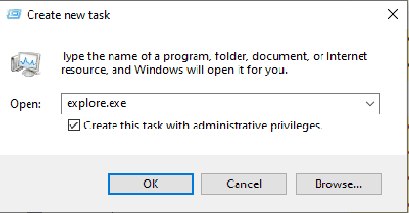
My result: As soon as I pressed OK, the white screen disappeared within just 2 seconds, and my original desktop,
wallpaper, and taskbar all loaded back immediately.
Method 2: Run SFC and DISM Repairs in Command Prompt (Permanent Fix)
After restarting Explorer, I still needed to make sure that no corruption remained in the system files, so that this white screen error wouldn’t come back the next time I restarted the computer.
Steps:
1.Open Task Manager again and click on “Run new task.”
2.In the box, type:
Code
cmd
3.Make sure to tick “Create this task with administrative privileges” and press OK. A black Command Prompt window will open in front of you.
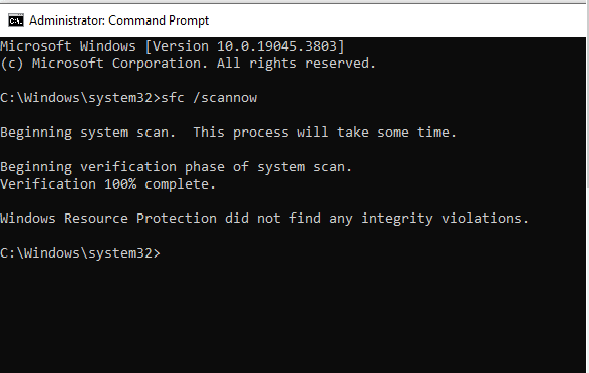
4.First, type the System File Checker command and press Enter:
Code
sfc /scannow
(This command scans all of Windows’ protected system files and replaces any broken or corrupted files with fresh copies. This process usually takes 5 to 10 minutes.)
5.After that, run this second command to fully repair the Windows system image:
Code
DISM /Online /Cleanup-Image /RestoreHealth
(This command downloads fresh files directly from Microsoft’s official cloud servers and repairs any damaged core components.)
6.Once the process finishes, restart your computer.
Method 3: Reset and Roll Back Your Graphics Driver
If your white screen error is happening because a display driver is getting stuck, this is the method you should use:
(a) Instant GPU reset shortcut:
If your screen is white, press these four keys together on your keyboard:
Code
Win + Ctrl + Shift + B
What happens: The screen will go black for about 1 second (a quick flicker), you’ll hear a soft beep from your CPU, and the display driver will instantly reset and reload a fresh frame.
(b) Rolling back the driver from Device Manager:
If this problem started right after a recent graphics driver update:
- Open Task Manager and go to “Run new task.”
- Type: devmgmt.msc and press Enter.
- The Device Manager window will open. Double-click on Display adapters to expand it.
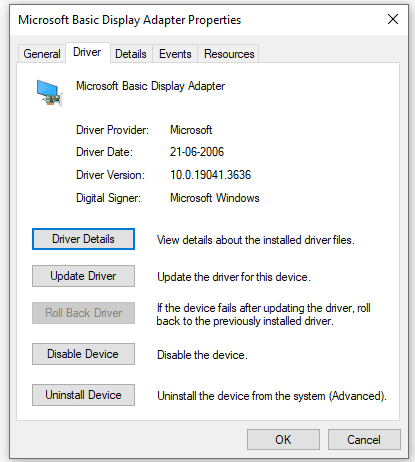
- Right-click on your graphics card (Intel HD, NVIDIA, or AMD) and select Properties.
- Go to the Driver tab and click on the “Roll Back Driver” button. This will revert the system back to the previous, stable driver.
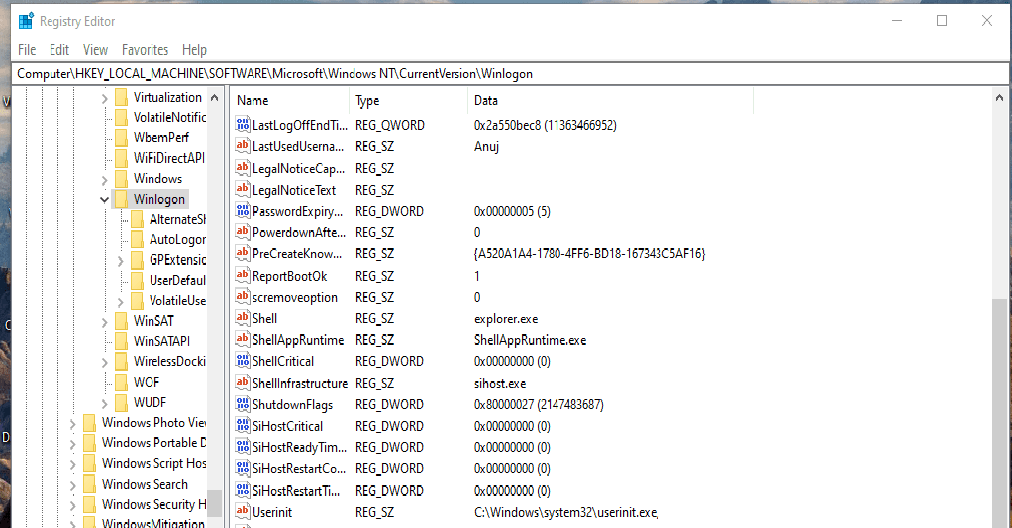
Method 4: Check and Fix the Shell Path in the Windows Registry
If a virus, malware, or some customization software has altered Windows’ boot shell, the system will keep showing this white screen error every single time it starts. Here’s how to fix it:
Steps:
1.Open “Run new task” from Task Manager.
2.In the box, type:
Code
regedit
3.Once Registry Editor opens, navigate to this path in the left-hand menu:
Code
HKEY_LOCAL_MACHINE\SOFTWARE\Microsoft\Windows NT\CurrentVersion\Winlogon
4.In the list on the right, look for a string value named Shell.
5.Double-click on it and check what’s written inside the “Value data” field:
- Correct value: It should say only explorer.exe, nothing else.
- If something else is written there: Delete it completely, and type only explorer.exe in its place.
6.Press OK and restart your computer.
5. What to Do If You Need to Boot Into Safe Mode
If your screen is frozen so badly that even Task Manager won’t open, you can boot Windows into Safe Mode to fix this white screen error:
- As soon as the computer turns on, press and hold the Power button for 5–10 seconds to force it to shut down.
- Do this 2 to 3 times, and Windows will automatically boot into Automatic Repair Mode.
- On the blue screen, go to Advanced Options > Troubleshoot > Advanced Options > Startup Settings.
- Click Restart, and once the keyboard menu appears, press F4 or F5 to select “Enable Safe Mode with Networking.”
- Once you’re in Safe Mode, you can easily go through the SFC scan and driver rollback steps described above.
6. Important Precautions to Avoid the White Screen Error in the Future
After this entire experiment and testing process, I noted down a few important precautions so that this white screen error never comes back:
- Always keep System Restore Points turned on: Keep the “Create a restore point” feature enabled in Windows at all times, so that after any major error, you can bring your system back to a previously working state in just one click.
- Avoid untrustworthy third-party themes and cracked software: Unverified Windows themes or “cleaner” software downloaded from random websites often damage registry files.
- Never interrupt a Windows update midway: When your system is in the middle of an update, don’t force-shut it down, as this can corrupt important system files.
- Update drivers only from official sources: Always update your display drivers only through NVIDIA GeForce Experience, AMD Adrenalin, or Intel Driver & Support Assistant.
7. Frequently Asked Questions (FAQs)
Q1: Does all my data get deleted when the White Screen Error appears?
Absolutely not! This error is limited to Windows’ graphical interface (explorer.exe) or the display driver. All your personal files, photos, and documents on the hard drive remain 100% safe.
Q2: Do I need to format Windows to fix the White Screen Error?
Not at all! As I demonstrated practically above, you can easily fix it without formatting — simply by restarting explorer.exe from Task Manager, or by running sfc /scannow in Command Prompt.
Q3: What if pressing Win + Ctrl + Shift + B doesn’t do anything?
If the shortcut doesn’t reset your display driver, press Ctrl + Shift + Esc to open Task Manager, and follow Method 1 or Method 4 (the Registry check) described above.
8. My Personal Take
Seeing the Windows White Screen of Death for the first time can definitely feel scary, but it’s not an unsolvable problem by any means. My own live testing experience here proves that with the right diagnosis, proper guidance
from AI tools, and basic built-in Windows tools (Task Manager, CMD, Registry), you can fix this issue yourself at home in just 5 to 10 minutes — without ever needing to visit a computer engineer.
If this white screen error is happening on your system too, follow the steps above one by one, and let me know in the comments which method worked best for your PC!
Official Microsoft Support URL:
Written by Rohit Sharma
Founder, Writer & Editor — ENBC News
Learn more about the author → About Us